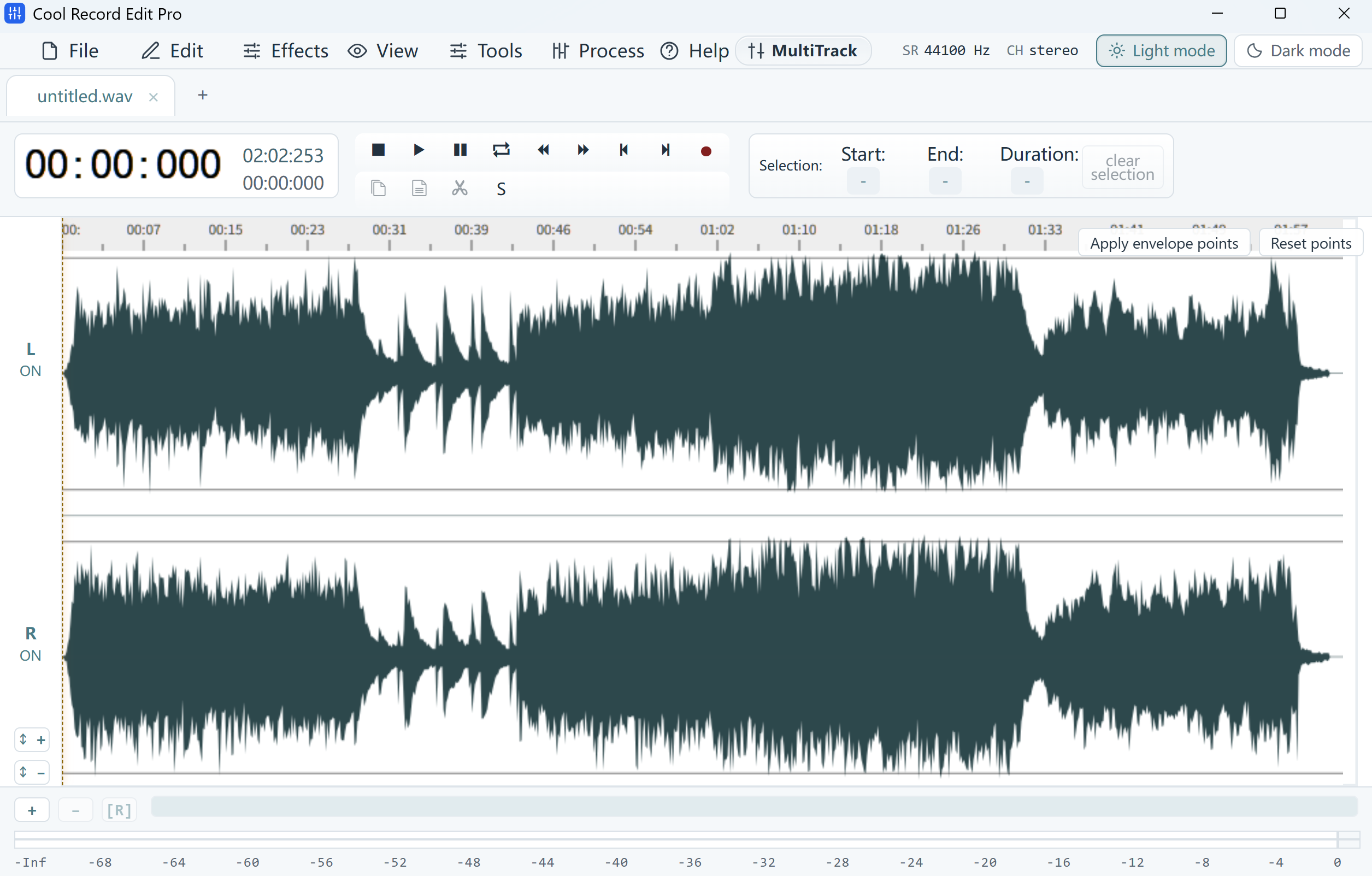
Find the transitions by listening
Open the full side in Cool Record Edit Pro and keep it as the master. Listen near the first transition. A pause can belong to the track around it, so listen for a fading note and the next count-in before placing the boundary.
Save each selected track
If the next song starts around 03:48, zoom into that area and find a clean boundary. Select from the start of the first track to that boundary and use Add Region from the waveform context menu to mark it. Copy the selection into a new file and export a WAV such as side-a-01.wav. Return to the master and start the next region at the same boundary.
Check the edges in the saved files
Listen to the final seconds of side-a-01.wav and the opening seconds of side-a-02.wav. Make sure the first track retains its tail and the second starts with its first note. Use zero-padded numbers so the file browser keeps the tape order.